 VPN Detector
Support
Answers to common questions — and a direct line if you need more help.
Email [email protected] — we usually reply within 1–2 business days.
Frequently asked questions
How do I add the widget to my Home Screen?
Touch and hold an empty area of your Home Screen until the apps jiggle, tap Edit in the top corner, choose Add Widget, then search for "VPN Detector". Pick a size and tap Add Widget.
How do I add the Lock Screen widget?
Touch and hold your Lock Screen, tap Customize, choose the Lock Screen, tap the widget area below the clock, then select VPN Detector. Requires iOS 16 or later.
How often does the widget update?
iOS controls widget refresh timing, so updates are periodic rather than instant. Opening the app always runs a fresh check immediately and updates every widget.
The widget says my VPN is off, but it's on. Why?
The last check may be stale — open the app to force a fresh scan. Some VPN configurations (like split tunneling) can also route the check outside the tunnel, which the app reports as exposed because that's what websites see.
What does "leak detected" mean?
It means your real public IP or country is visible even though a VPN appears to be active. Try reconnecting your VPN or switching servers, then run the check again.
How do I customize the widget?
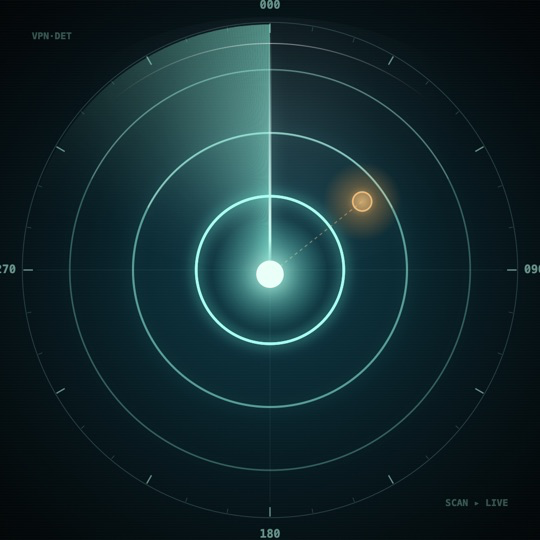
Touch and hold the widget, tap "Edit Widget", then pick a layout (Status, Detail, Radar, or Inline), set a custom label, and choose a color.
Does the app collect my data?
No. Zero data collected — no tracking, no ads, no analytics. See the privacy policy for details.
How do I manage or cancel my subscription?
Subscriptions are handled by Apple. Open Settings on your iPhone, tap your name, tap Subscriptions, then select VPN Detector. Refunds are requested through Apple at reportaproblem.apple.com.
Which devices are supported?
iPhone and iPad running iOS 16 or later. StandBy widgets require iOS 17.